Thursday, 24 August 2017

Best ultrabook laptop of 2017


Dell might be sticking to the adage of “If it ain’t broke, don’t fix it” when it comes to the XPS 13, but that strategy keeps producing the best ultrabook of the bunch. The Kaby Lake XPS 13 shares the same design as its predecessors: a quality aluminium exterior and carbon-fiber top, and that wonderfully compact, bezel-free 13-inch screen.

Dell actually released two updates to the XPS 13 in 2016: The one at the start of the year swapped in a Skylake CPU, added a USB Type-C port that served as an alternative charging port, and offered upgraded storage options. The most recent refresh—and our new pick for Best Ultrabook—keeps the same chassis changes as the Skylake XPS 13, features a jump to Intel’s new Kaby Lake processor, and sports a slightly larger battery. You get improved performance across the board, with a nice bump of an extra half-hour of battery life during video playback.
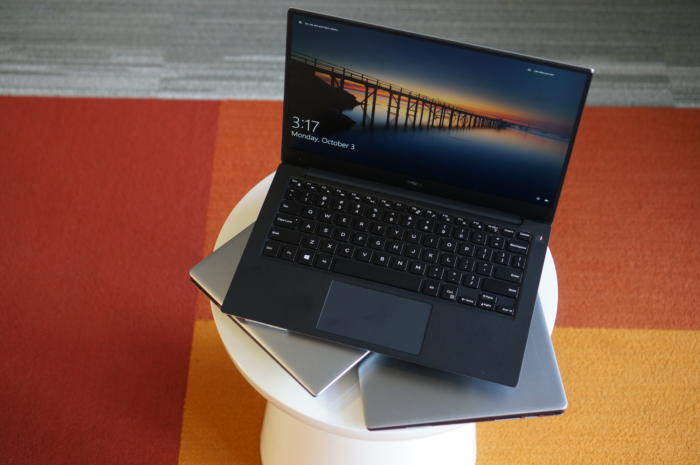
Kaby Lake戴尔XPS 13

The Kaby Lake version of the Dell XPS 13 maintains that balance between portability, compact size, and performance that we like so much.

Our only lingering complaint is the small keyboard, but overall, you can’t lose with the newest XPS 13. It’s a truly compact ultrabook that punches out of its class.

Runner-up

If looks are more your thing, the HP Spectre 13.3 certainly has a distinct profile: It’s one of the thinnest ultrabooks around. For anyone coveting the streamlined experience of Apple’s 12-inch MacBook, this 13-inch notebook will bring you close while providing superior performance.

You might expect such a skinny laptop to sport a lower-wattage Core i3 or i5 processor, but HP fits a 15 watt Core i5 or i7 processor into this Spectre. That puts it on par with other, chunkier top-tier ultrabooks, like the XPS 13. Combined with its 256GB M.2 SSD, it runs smoothly and swiftly during typical office drone work (word processing, spreadsheet editing, web browsing, etc), without any heavy throttling of performance during CPU-intensive tasks. HP also made the ports count: While there are just a few, you get not one but two Thunderbolt 3 ports, as well as a USB-C port.
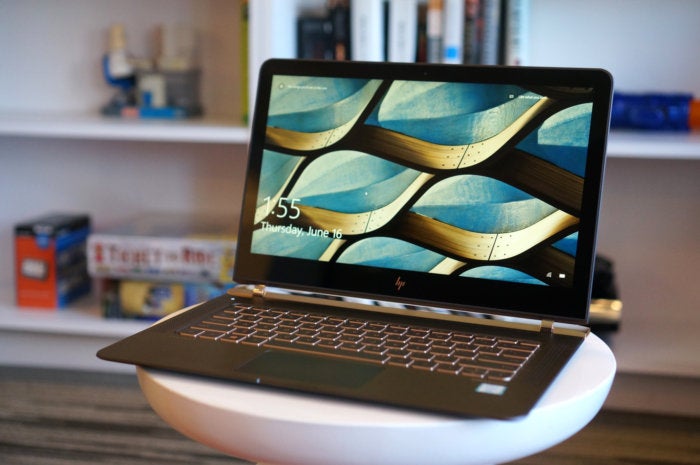
hp幽灵13.3

The HP Spectre 13.3 is one of the sleekest ultrabooks around.

The drawbacks of this modern and sleek notebook are its battery life, which is modest due to its smaller battery, and its wider frame. (The Spectre 13.3’s hardware and cooling configuration requires a certain amount of space—HP’s engineering is impressive but can’t defy the laws of physics.) It’s for those reasons that we prefer the Dell XPS 13, but this laptop is still a very fine companion.

Wednesday, 23 August 2017

What to do when your laptop's touchpad stops working


When your laptop’s touchpad stops responding to your fingers, you’ve got a problem. Have you ever tried to use a Windows PC without a mouse, touchpad, or other pointing device? It’s all but impossible.

If the problem just started, reboot your computer and see if that fixes it. (Yes, I know that’s painfully obvious, but we all sometimes overlook the obvious.) If that doesn’t work, try these solutions.

First, make sure you haven’t accidentally disabled the touchpad. In all likelihood, there’s a key combination that will toggle the touchpad on and off. It usually involves holding down the Fn key (which is probably near the lower-left corner of the keyboard) while pressing another key.

But what other key should you press? It’s probably one of the function keys (F1 through F12), although it might be something else. Examine the keyboard, paying particular attention to the little icons (usually blue) on some of the keys. Look for an icon that might suggest the touchpad.

Unfortunately, not all touchpad icons are easy to figure out. I never would have guessed the one on my old Lenovo X220. I found it by searching on the model name and number plus “disable touchpad.” The answer, by the way, was F8. I had to search the answer again for my newer Lenovo Yoga 900, where it was F6. If you can’t guess the icon, I suggest you do the same.

If that doesn’t fix the problem, check the touchpad settings. In Windows 7 or 8, go to the Start menu or the search charm and type mouse settings. Select Change mouse settings (there are other options that are very similar, so pick the one with that exact wording). In Windows 10, click the Windows key and go to Settings > Devices > Touchpad. This brings you to the Touchpad settings page, where you can confirm the touchpad is enabled and check other options.

If that doesn’t help, you may need a new driver. Go to your laptop manufacturer’s website and search for your model number and the words touchpad driver. See if there’s a driver you can download and install.

If none of these suggestions work, you’ve got a hardware problem. Assuming you’re not ready to try this sort of repair yourself, you have two options: You can send the laptop to a shop for repairs, or you can buy a small, wireless mouse and use that in its place.

Intel's 8th-gen Core CPUs could boost laptop performance by 40 percent


Updated to add details of the rumored black Surface Book based on the 8th-generation Core chips, as well as Intel’s desktop processors.
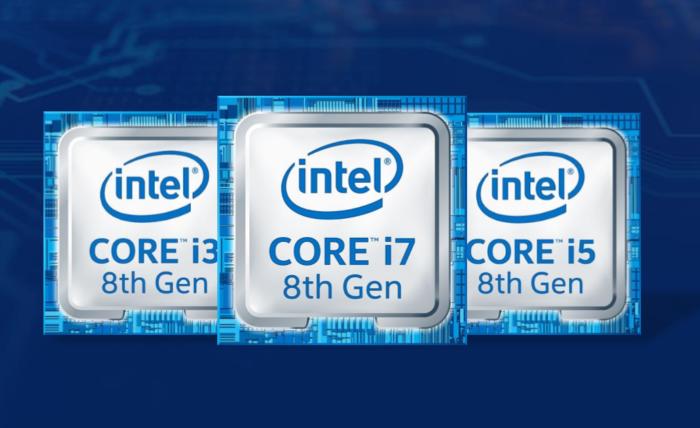
intel 8th gen family logo

For the first time, Intel’s upcoming 8th-generation Core CPUs will feature quad-core processors aimed at ultrabooks, offering performance as much as 40 percent faster than in the previous generation, the company said.

Intel hasn’t disclosed the prices of its four new 15-watt 8th-gen Core U-series chips, though the company revealed Monday how fast they’ll run: The slowest Core i5-8250U will run at 1.6GHz, with a boost clock of 3.4GHz; the fastest Core i7-8650U will run at 1.9GHz, boosting up to 4.2GHz.

All four U-series chips include four cores and eight threads. PCs using the new 8th-gen Core chips should begin shipping soon, Intel said, with about 80 new system designs ready to go by the 2017 holiday season.

The far more interesting story, at least for enthusiasts, is how Intel has loosened the definition of “generation,” as a slowing Moore’s Law has thrown off the company’s legendary tick-tock manufacturing process. These 8th-generation CPUs are not the upcoming Coffee Lake, as previously expected. Intel characterizes its new chips as a “Kaby Lake refresh,” referring to the current Kaby Lake chips as “prior generation” parts. Here’s another surprise: Both Coffee Lake and the upcoming 10nm Cannon Lake chips will also be part of Intel’s 8th-generation Core branding.

Confused? Let’s sum up: Intel’s 8th-generation Core chips will include three separate chip architectures and two process technologies, all under a single brand name. Whew!

A new crop of HP laptops flip or spin, and run Windows, Chrome or Android


HP announced a versatile lineup of PCs and PC-shaped things on Monday (Taipei time) at Computex, embracing the new normal in the world of PCs—which is, nothing’s normal.
hp computex primary copy

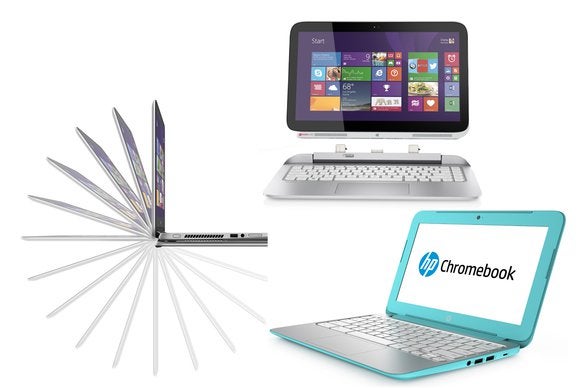
A year ago, the PC diversification drive was just getting started, but now it’s in full swing. You want a laptop that can flip over with a 360-degree display hinge? HP’s got one. What about a laptop that can split in half? HP’s got one. Or maybe it looks like a laptop, but it runs Chrome or Android—HP’s got some of those as well. It’s also got plain ol’ Windows laptops and PCs, but that’s not where the excitement is anymore.

Let’s start with the hottest trend, which is notebooks that can flip all the way over to turn into a tablet, following the lead of Lenovo’s Yoga series. HP debuted the Pavilion x360 with a full-rotation hinge at Mobile World Congress in Barcelona. Now it’s got more fleshed-out specs, plus a fancier version that will carry HP’s Envy moniker.

The Pavilion x360 will have a 13.3-inch touch display and your choice of graphics-oriented AMD A6, A8, or A10 CPUs, or more battery-efficient Intel Core i3 or Core i5 CPUs. Speaking of battery life, HP specs it at up to 8.25 hours with the Intel chips, but up to only 6.25 hours with the AMD chips.

The Pavilion x360’s memory will run up to 8GB, and hard-drive storage will range from 500GB to 1TB. The Pavilion x360 will weigh about 4.3 pounds and come in red or silver case colors. The AMD versions will cost $630 and be available on July 9, while the Intel-based models will cost $600 and be available July 20.

The Envy x360 will be physically bigger than its Pavilion cousin, sporting a 15.6-inch display, a heavier 5.8-pound weight, and Intel Core i3-i7 processors. It’ll be configured with up to 8GB of RAM and up to 1TB of storage, including a hybrid option. Silver will be its sole case coloring. HP says the battery will last up to 7 hours. HP did not specify a ship date, but the price will be $680.

HP built several improvements into the new Split x2 hybrid, including a fanless design. Thanks to the advent of thinner hard drives, HP was also able to shift the main storage from the keyboard side to the tablet side, so users won’t be separated from their data regardless of the mode.

The Split x2 configurations will offer Intel Bay Trail and Haswell CPUs, 4GB to 8GB of RAM, and up to 500GB of hybrid storage. The 13.3-inch tablet side weighs 2.45 pounds, but the full unit with keyboard attached weighs 4.3 pounds. The tablet alone lasts 5.25 hours per HP’s spec or 7.75 hours with the keyboard (which has its own battery) attached. Colors will include white, silver, and red. The Split x2 will be available July 16th for a starting price of $600.

Less than a year after HP debuted the Chromebook 11 (with 11.6-inch display) it’s giving the line a look more similar to that of its Chromebook 14 cousins (with 14-inch display). Gone are the shiny white and classic black of the original version, designed in collaboration with Google. The new Chromebook 11 will come in Ocean Turquoise or Snow White.

The specs remain simple: a Samsung Exynos 5250 CPU, up to 2GB of RAM, and 16GB of local storage. It will weigh a pleasant 2.69 pounds, and HP says the battery will last up to 6.25 hours. HP set the price at $249, but a ship date has yet to be announced.

PC-shaped Android devices popped up at Computex in 2013, and a light trickle of models has come out since then. A recent roundup of Android AiOs shows how vendors are still experimenting with this fairly new concept.

HP introduced its Slate line of Android products last year, starting with a tablet and an All-in-One. This year, a new SlateBook delivers the Android experience in a clamshell design whose black and “sweet yellow” accents make me think it should be called SlateBee. The 14-inch Full HD touchscreen device will be driven by an Nvidia Tegra 4 chip and contain up to 2GB of RAM, and up to 64GB of storage. It will weigh a toteable 3.71 pounds. HP says the battery will last up to 9.25 hours. The new SlateBook will ship on August 6 for a starting price of $429.

I’ll give HP credit this year. It’s been playing catch-up in developing products for a new generation of users. The products it’s unveiled at Computex show that it’s assertively developing even fairly new product lines like the Slate Android devices. It hasn’t given up on its Windows business, but it’s responding to users’ restless search for more versatile form factors and tablet-like talents.

What do you think—is HP innovating, or is it straying too far from its PC roots? Let us know in the comments.

Correction: Due to erroneous press information, the price of the HP SlateBook was corrected from $399 to $429. PCWorld regrets the error.

Tuesday, 22 August 2017

How to find the proper replacement LCD for your HP Laptop


Laptop computers are subject to a lot of wear and tear, especially on their moveable parts. The monitor is one of the most used and abused parts of your computer as a result of this, and also its sheer size. Fortunately, it isn’t that hard to find and replace an HP LCD monitor for your laptop.

The first thing you’ll want to do is identify your machine, with a model number if possible. Typically, this will be displayed on the underside of the laptop on a white sticker called the service tag. If you’re not sure what is what on this sticker, write it all down. The model number identifies your machine, and the product number narrows it down even more.

If you are unable to find your specific model number, you may need to remove the LCD itself and find a part number on it. To do so, look at the front of your monitor. It will either have screws or caps along the edge facing you as if you were using the machine. If it has caps these can be removed simply by popping them off with a tool. Remove the screws beneath around the perimeter of the screen. Then, take a corner of the bezel (the part of your computer case surrounding the monitor itself) and carefully remove the entire face and set aside. Now at the bottom of your laptop, you should see screws on the hinges which will also need to be removed, carefully. Once this is done you should be able to lower the monitor itself face down to the keyboard, revealing its backside, which will list its specific part number.

If you do attempt to do this at home, be sure to remove the AC adapter and the battery. Remember always, safety first. If you are not comfortable with doing this, take your machine to a local repair shop, or contact your manufacturer for further assistance.

When shopping for replacement LCDs, there are a number of specifications of which to be cognizant. First and foremost will be size. Especially when purchasing a new laptop monitor, you will be locked into a specific size, so make sure your new monitor will fit your machine properly. Aspect ratio refers to the height and width of display, for example a 16:9 would be considered a widescreen display format. Resolution is typically the gold standard of performance rating. The higher the resolution, the more pixels the monitor will display. More pixels allow for a sharper, crisper image. Most common displays run at WXGA or XGA, depending on the aspect ratio. There are many other specifications that come in to play that you may wish to discuss with a computer repair shop or retailer, but those listed above will be the most influential to the quality and function of your display.

Common solutions to internet connectivity issues


One of the most frustrating problems many users face is that random seeming event when your computer simply will not connect to the internet. You can’t tell why, there doesn’t seem to be anything wrong, but no matter what you do, your computer just cannot seem to get online. There are however, a few common culprits that can get between you and the great wide world of web, and luckily they’re pretty easy to remedy as well.

First, do a quick cable check. If you are using a desktop computer, check the cable connections from the back of your tower, to your router (if you have one), to your modem, and finally to your wall. All connections should be tight and secure. If you’re using a laptop on a wireless connection, you should still check the cables from your router, to the modem, and finally to the wall. Also, while you’re checking your modem, check its status lights. Is it sending and receiving information? If it isn’t, you may need to contact your internet service provider.

Another simple cause of connectivity issues that happens more frequently than you’d think is actually having the wireless card enabled. Most laptops will have either a button or switch right near the keyboard to toggle the wireless card on and off. Check that this is in the “on” position. If this doesn’t fix the problem, go into your computer’s device manager and check the status of the wireless card. It may not be functioning properly, or may have been disabled manually while your wireless switch remained in the “on” position.

When in doubt, restart your modem and your router. Sometimes, they just get stuck. Routers are notoriously sensitive machines, and the tiniest thing can throw them off. Usually, unplugging either of these devices for about 10 seconds and then plugging them back in gets them to refresh themselves, which in itself can sometimes fix whatever problem you may be having.

If none of these things work, contact your internet service provider. Many times their technicians will be glad to assist you in checking everything over, and they can double check and confirm the status of your internet service as well.

Should you get an extended/accidental damage warranty for your computer?


Extended warranties extend the coverage against defects and problems that a computer may experience for a longer period of time. An accidental damage warranty can cover a computer repair in situations that the standard warranty may not, such as water damage or dropping a laptop on a floor. On the surface, these warranties could save you a lot of money if you need a repair, but are they worth it? Let us look at a few of the factors to consider.

Reliability

Computers tend to be more reliable today than they were even a few years ago. As manufacturing processes improve, the chance of a major failure is less likely.

Cost

When considering whether to purchase an extended warranty or accidental coverage, weigh the cost of the warranty with the likely cost of a major repair and/or the parts needed for that repair. Then consider the likelihood of the repair being necessary. Also consider the replacement cost for a new laptop. Laptops have become increasingly less expensive, often making it cheaper to purchase a new laptop with a new warranty than to pay for a costly repair.

Insurance Coverage

In some cases, home insurance may cover the cost of some computer problems, particularly those caused by lightning damage or other factors associated with your home. Check your policy to see what may already be covered.

Saving Alternatives

You may want to consider skipping an extended warranty, but to put the same amount of money in a savings account. If a repair becomes necessary, the money in the account may be enough to cover it. If a repair is never required, you can use the money to purchase your next computer, or keep it in the savings account for future repairs.

There is no quick and easy answer as to whether or not an extended warranty will be worth the money in every situation. There are many users who have saved a lot of money by utilizing an extended warranty, but also many who paid for one and never used it. Considering the factors listed above can help you to make an informed decision based on your own personal needs.

Popular Articles