Sunday, 3 September 2017

Acer announces two 360-degree cameras

Acer is joining the 360-degree video craze with two new cameras, including one designed for your car. The Acer Holo360 is smartphone-sized 360-degree camera powered by a Qualcomm Snapdragon 625 processor. The LTE-connected camera comes with a 3-inch display and can capture 4K 360-degree videos. It also runs Android 7.1, making it easy for users to share their videos over social media.

The other camera Acer announced is the Vision360, a camera designed as a high-end dash cam. The Vision360 is designed to film every angle of your car during a collision in 4K, and then upload that footage to the cloud with GPS coordinates and your speed. If your car is stationary and is hit (say in a parking lot) the Vision360 will activate, record a clip, and send your phone a notification, a far better solution than a simple dash cam especially if your vehicle gets hit from behind. 


The Vision360 also supports remote viewing and location tracking (to help you find your car in the parking lot), and users will be able to watch footage back through Acer’s VR headset.

The Holo360 will retail for $429 when it’s released in November, and the Vision360 will come in at €349 ($414) when it’s released later this year in Europe.

Apple shows off new AR apps just as Google launches ARCore


Ever since Apple announced ARKit at its annual developers conference earlier this summer, the app-making community has enthusiastically shown off what it has been able to make with the new framework for augmented reality apps. ARKit hasn’t even officially launched yet, and already we’ve seen demos of AR fidget spinners, floating cats, and fancy car configurators on iPhones.


Serious, groundbreaking stuff, right?

But it’s sometimes the fun, toy-like technologies that give way to more serious use cases, which is probably why Apple seems to determined to show off other demonstrations of AR apps that will roll out with iOS 11 next month. Half a dozen app developers gathered on Apple’s campus in Cupertino, Calif. yesterday to demo their upcoming AR apps and talk about their development processes, including big brand names like Ikea, The Food Network, AMC TV, Giphy, and more.

IOS DEVELOPERS SAY THE SIZE OF APPLE’S USER BASE COULD BE THE REAL GAME-CHANGER IN AR

Some app developers, like UK-based Climax Studios and Brooklyn-based Touch Press, talked about how relatively easy it was to create an ARKit app, sometimes in just six to eight weeks. Many talked about the technical capabilities that have been unlocked with ARKit.

But almost all of the developers there said the same thing: it’s Apple’s giant audience, its many millions of iPhone and iPad users, that they think could be the real game-changer in AR. Apple’s pre-arranged gathering of AR app-makers also occurred just as Google is launching ARCore, a new platform for AR app developers that could expand Google’s AR reach in a significant way. If there was ever a moment that marked the real start of the mobile AR platform wars, it’s probably now, and all before the fall hardware season has even begun.

Ikea was on hand at Apple yesterday, and showed off a new AR app for iOS called Ikea Place. It’s a riff on other furniture try-on apps we’ve already seen in AR, whether on Google’s Tango AR platform or in 2D furniture apps. You open up the Ikea app on the iPhone, use the phone’s camera to measure the space around you, and “place” an Ikea furniture item in front of you. You can walk up to the item, get a sense of its size, see materials and texture, and in a future version of the app, you’ll even be able to tap on a virtual sofa to see how big it is when it expands to become a sofa bed.

Michael Valdsgaard, Ikea’s head of digital transformation, said that the company has been working on 2D AR features for almost five years, but that it developed a new app for ARKit because of reach. “Apple is the one who reaches many people,” he said.

Simon Gardner, the chief executive officer at Climax Studios, concurred. His new AR game for iOS, Arise, creates a virtual puzzle in real space that can only be solved by physically tilting the iPhone or iPad and steering a character through this puzzle. Climax Studios has long dabbled in AR, and created a game called Towers for Tango for Google’s Tango AR platform. Gardner says they’ve also worked on apps for Microsoft’s HoloLens before, though none have published.

The biggest difference between building for those platforms, and building for iOS, is the size of the audience, Gardner said. “You have a potential install base on day one of hundreds of millions of devices.”

ARKIT WILL WORK ON ANY EXISTING IDEVICE THAT HAS AN A9 PROCESSOR AND RUNS IOS 11 SOFTWARE

The biggest advantage Apple has with ARKit is that AR apps will run on any existing device that’s both equipped with an A9 processor and running iOS 11 software, which is currently still in beta. This means any iPhone 6S or later, or any iPad Pro, will run these AR apps.

Apple also has the advantage of owning the “full stack” in the iPhone and iPad: it controls everything from the iOS software right down to every component in every piece of hardware, which means the experience of how apps run on said devices is tightly controlled as well.

This means Google’s approach to AR has had to be a very different one, since Android shows up on devices of all sizes and specifications. The company has been working on its AR solution, called Tango, since 2013, and developed specific hardware and software requirements that phone manufacturers would have to adopt in order to support advanced AR. As a result, only two phone models to date, the Lenovo Phab 2 Pro and Asus ZenFone AR, have shipped with Tango.

GOOGLE’S HAS LAUNCHED ARCORE ON GOOGLE PIXEL AND SAMSUNG GALAXY 8 PHONES, AND IS TARGETING 100 MILLION DEVICES BY THE END OF THE YEAR

But just this morning, Google announced something called ARCore, its equivalent to Apple’s ARKit. It’s a built-in AR platform for app makers, and is available now on Google Pixel and Samsung Galaxy 8 phones, with the hopes that it will run on 100 million phones by this winter. This could expand the community for Google AR apps significantly, and The Verge’s Adi Robertson says that the controlled ARCore demo she had at Google’s offices was “one of the best experiences I’ve had with phone-based AR.” Google is also working on two experimental AR web browsers, one that will use ARCore and one that will run on iOS and support ARKit.

Certainly there are some technical advancements happening with Apple’s ARKit that are notable. ARKit enables something called “world tracking,” which, as The Verge’s Robertson has reported before, relies on a technique called visual-inertial odometry. Most AR on phones so far has involved 2D, flat overlays — think Pokémon Go — whereas the kind of AR we’re talking about now is advanced, 3D AR.

AMC’s The Walking Dead AR app, which is called Our World and was developed by Next Games, using an ARKit feature called ARPointCloud that lets developers hide objects in an AR environment and reveal them at a certain point in the experience. This is especially useful in a game like Our World, where walkers (zombies) appear to crawl out of the corners around you, at intervals, as you continue to play the game.

Some ARKit apps will incorporate multi-player or collaborative features as well. AMC and Next Games showed off how you’ll be able to invite friends to slay zombies with you in Our World; and the new Giphy AR app, called Giphy World, lets you create an AR environment filled with 3D confetti or cartoon hamburgers or 2D gifs floating around the room, and share a URL with another user who can add more Giphy content to your AR world.

Other ARKit apps might be simpler, like The Very Hungry Caterpillar AR app. A caterpillar inches around the room you’re in; you feed it when you feel like it; and eventually it turns into a butterfly. When you look up through the lens of an iPhone or iPad, it joins the dozens of other butterflies that have been created through previous game plays.

Of course, this doesn’t mean that iPhone and iPad users will be immune to the same problems that plague other advanced AR platforms — the gimmicky apps, the drain on device battery life, and the overall feeling that you’re sometimes using an AR app not because it makes sense but just because it’s a new AR app. These have all been very real barriers to AR becoming more mainstream.

But what will set ARKit apart, according to Barry O’Neill, chief executive officer of Caterpillar app-maker Touch Press, is the “ease of use from a developer perspective and the scale of the audience.”

“Consumers are going to work with AR in a very natural way now,” he said.


The iPhone 8’s dock might work more like the new iPad’s

All the rumors about the upcoming iPhone 8 point to Apple making some fairly big changes to the device’s user interface, with tweaks needed to accommodate the removal of the home button and the addition of a “notch” housing the phone’s camera and sensors at the top of the display.

Bloomberg’s Mark Gurman has a new report on how exactly these changes could be implemented, with Gurman’s sources suggesting that Apple is looking for ways to replace the functionality usually assigned to the home button. (E.g. returning to the home screen, opening up the multitasking interface, and accessing Siri.)

In the dodgy supply chain of Apple leaks, it’s often better to repeat then paraphrase, so here’s what Gurman is predicting for the iPhone 8 UI:

Dock: The dock housing commonly-used apps will be “redesigned with a new interface similar to the one on the iPad version of iOS 11.” Underneath the dock will be a “thin, software bar in lieu of the home button.” Users can drag up from here to the middle of the display to open the phone, or use the same gesture to start multitasking when inside an app.

Multitasking: This interface will be “redesigned to appear like a series of standalone cards that can be swiped through, versus the stack of cards on current iPhones.”

Status bar: This will be split into two “ears” on either side of the notch. “[T]he left side shows the time while the area on the right side of the notch displays cellular and Wi-Fi connectivity and remaining battery life,” writes Gurman. Whether or not Apple will choose to hide the notch by making the status bar black has been the subject of some speculation, but Gurman reports the company will embrace it, with leaked images “showing a definitive cutout at the top of apps with non-black backgrounds.” The status bar will also reportedly “change based on the task at hand,” although exactly how is unclear.

Of course, this is just rumor at this point, and the final UI for the iPhone 8 may differ from what’s stated above in any number of ways. However, there is some evidence for this redesigned interface. As developer Steve Troughton-Smith points out on Twitter, the UI described by Gurman’s sources matches leaked iOS 11 gestures uncovered back in May. Troughton-Smith also tweeted this image showing how the redesigned status bar and dock might look:

And what the 'iPhone 8' homescreen could look like — iPad-style Dock and edge-gesture indicator (via @charavel)

— Steve T-S (@stroughtonsmith) August 30, 2017


If true, these changes will only apply to the iPhone 8, with Apple expected to unveil two new, more pedestrian iterations on the iPhone 7 and 7 Plus as well. The iPhone 8 is also expected to start at $999, have a front-facing camera that will use facial recognition for unlocking the phone and payments, and be available in a new color my colleague Jake Kastrenakes described as “ugly, pinkish bronze.”

Apple will reportedly be unveiling the new iPhones on September 12th. Stay tuned for more.


Friday, 1 September 2017

6 ways to lock down your iPhone’s lock screen


From text message alerts to wireless settings, your iPhone’s lock screen is brimming with sensitive data and controls. Here’s how to lock it all down.

Just because your iPhone is locked with a passcode or Touch ID doesn’t mean it’s safe from prying eyes and fingers. From text message notifications to Siri, your phone’s lock screen is brimming with alerts, features, and settings that anyone can tamper with, even after you’ve locked your handset.

Luckily, iOS has plenty of settings that can help lock down your phone’s lock screen. For example, you can keep sensitive notifications hidden, disable controls that could put your lost phone in airplane mode, turn off lock-screen access to Siri, and more.

Turn off lock screen notifications


You’d probably never dream of letting a stranger rifle through your text messages and email inbox, but that’s what could happen if you allow apps like Messages and Mail to put alerts on your iPhone’s lock screen. It’s even possible to reply to a text message or trash a mail message directly from the notification, even if your iPhone is locked.

If you’re worried about the wrong people seeing notifications from Messages, Mail, and other applications on your iPhone’s lock screen, consider turning off lock screen notifications for your most sensitive apps.

Tap Settings > Notifications to see a (probably massive) list of app the apps installed on your iOS device. Tap an app, then switch off the Show on Lock Screen setting to keep the app’s notifications from appearing on your lock screen. Unfortunately, there’s no way to turn off all lock screen notifications at once.

Block access to Today widgets and Notifications

Swipe from left to right on your locked iPhone screen, and you—or anyone else who’s got your device—can see your Today widgets. That means, depending on the widgets you’ve installed, they could check your calendar, peek at your Mail inbox, speed dial your favorite contacts, and more. Some apps are sensitive about what they show when your iPhone is locked—Activity, for example, and Find My Friends, won't show anything in their widgets until you unlock the phone.

Also, if you swipe down from the top of the Today view, you’ll see a running tally of all your lock screen notifications, neatly organized by date. Essentially, it’s a history of your important app activity for the past week, all there for anyone to see.

If you don’t want just anyone to be able to view your agenda in the Today view or past app alerts in Notifications, you can tap Settings > Touch ID & Passcode, scroll down to the Allow Access When Locked section, then uncheck the Today View and Notifications View settings.

Keep in mind that even with the Notifications View setting unchecked in the Allow Access When Locked section, individual lock-screen notifications for your apps will still appear on the lock screen, unless you disable them in the Notifications settings screen. You just won't be able to pull down the list of all your notifications.

Turn off access to Control Center

Flick up from the bottom of your iPhone’s lock screen and you’ll reveal Control Center, a panel of settings and controls that do everything from toggling your airplane and Do Not Disturb modes to setting timers and turning your iPhone’s LED flash into a flashlight.

It's handy, but leaving Control Center enabled on your lock screen could allow an iPhone thief to put your stolen device into airplane mode, rendering your lost handset untraceable via Find My iPhone. If you don’t want anyone messing with Control Center settings on your locked iPhone, tap Settings > Control Center, then turn off the Access on Lock Screen setting.

Block access to Siri

Siri can perform a surprising number of duties even when your iPhone is locked. For example, she can rattle off your agenda, schedule new meetings, create reminders, and even send text messages to contacts.

While Siri won’t perform sensitive tasks (such as reading your email) without a passcode, you can, if you wish, block access to Siri completely from the lock screen.

Tap Settings > Siri, then uncheck the Access When Locked setting.

Turn off Wallet access


If you’re an Apple Pay user, iOS will let you quickly access your stored credit cards from your iPhone lock screen by double-tapping the Home button.

While you can’t actually make a purchase without authenticating with Touch ID or a passcode, you may not want your Apple Pay cards so visible from the lock screen—or perhaps you’re just tired of your credit cards popping up whenever you double-press the Home button by accident.

To block lock screen access to your iOS Wallet, tap Settings > Wallet & Apple Pay, then uncheck the Double-Click Home Button setting. Your Wallet will still come up when you hover your phone over an Apple Pay terminal, or you can launch Wallet from its app or with Siri.

Put your missing iPhone in “lost mode”


Let’s say you never got around to securing your iPhone’s various lock screen features, and whoosh!—your iPhone vanishes from your pocket. If you act quickly, there’s still a way to remotely lock down your iPhone.

The trick is engaging Find My iPhone’s Lost Mode, which instantly silences all notifications, alarms, and rings from incoming phone calls. Control Center will also be disabled, and even the Camera shortcut—which can’t be turned off by any other means—will shut down.

To put your missing iPhone into Lost Mode, visit iCloud.com, click Find My iPhone, select your iPhone, then click the Lost Mode button. You can also turn on Lost Mode using the Find My iPhone app on another of your iOS devices.

Note that Lost Mode will only work if your missing iPhone still has wireless access. If the thief who snatched your handset puts it into airplane mode, you’ll be out of luck.


6 great Android features missing from iOS 11


Sure, iOS 11 looks cool, but Android's still cooler in some key ways.

Call me a flip-flopper, but the new features in iOS 11 have me thinking of jumping back to iOS after switching to Android barely a year ago.

Indeed, the new version of iOS brings such enticing features as a revamped App Store, a customizable Control Center, and drag-and-drop for iPad users, plus such catch-up features as one-handed typing and easy person-to-person payments.

But returning to iOS would mean leaving behind many Android features I've grown to love, from the ability to set up multiple user profiles to one-touch Google searches on whatever's onscreen at a given moment.

Read on for six awesome Android features that iOS 11 has yet to match, starting with...

Multiple user profiles

Given all the innovations coming to the iPad courtesy of iOS 11, from the ability to drag-and-drop elements from one side of the split screen to the other and the new, persistent app dock, you'd think Apple would toss in a feature that's been standard on Android for years: user profiles, perfect for letting family members in a one-iPad household create their own personal iPad spaces.

For whatever reason, though (privacy concerns, perhaps?), Apple has yet again passed on adding user profiles to the iPhone or iPad. That means if you share your iPad with your toddler or teenager, you're sharing all your iPad data, too, including your e-mail, your open browser tabs, your Facebook app, everything.

Multiple Do Not Disturb schedules

Android has really spoiled me with its "automatic rules" for Do Not Disturb mode. With automatic rules, you can set up multiple Do Not Disturb schedules for weeknights, weekends, meetings, and any other scenarios you dream up. For example, I have Do Not Disturb set to turn itself off early (as in 6 a.m.) on weekday mornings, while on weekends, Do Not Disturb keeps things quiet until about 8.

In iOS 11, though, Do Not Disturb mode still lets you set only a single schedule, meaning you can't set Do Not Disturb to give you more quiet time on weekends or during meetings.

Yes, the new "Do Not Disturb While Driving" feature (which automatically silences notifications whenever your iPhone senses you're driving) is a nice innovation, but it's too bad iOS 11 didn't catch up to Android's Do Not Disturb features.

Search the entire screen

As with previous versions of Apple's mobile software, iOS 11 lets you perform quick web searches on selected text via Spotlight, iOS's universal search feature. That's helpful if you want a deep search on a narrow selection of text, but sometimes I'm looking for a broader search of everything on my screen.

Here's where Android's Screen Search feature comes in handy. With a single tap of the What's on my screen button in Google Assistant, Android will scan the entire screen and return any relevant search results, handy if you want a quick, 360-degree cheat sheet on a news article or web page. Pretty neat, and there's no real equivalent on iOS, not even once iOS 11 arrives.

Clear all app windows

Here's an Android feature I'd sorely miss even though I know it's more cosmetic than anything else. The "Clear All" button on Android's Overview screen instantly closes all your open app windows, leaving you with a soothing "No recent items" message when you tap the Overview button again. For a neat-freak like me, tapping the Clear All button never gets old.

On iOS, though—and yes, this includes iOS 11—there's no easy way to clear out the massive stack of app windows on the multitasking screen, forcing you to flick up on dozens of individual windows until the coast is clear.

Now, I'm sure iOS comes with marvelous under-the-hood tools that manage the resources used by your apps and automatically suspends those that have been sitting untouched in the background for too long.

Still, though, I know it'll kill me the first time my thumb reaches for the non-existent Clear All button on my new iPhone 8 (assuming I actually make the big leap).

Delete all local photos & videos from the Photos app


You've probably heard about the new storage-saving features in iOS 11, particularly when it comes to the storage-hogging Photos app.

For example, Apple announced support for a new image format (HEIF, for "High Efficiency Image Format") that can halve the amount of storage gobbled up by your snapshots.

Also coming in iOS 11: shortcuts that do a better job of recommending storage-saving features like iCloud Photo Library, which uploads all your pictures and videos to the cloud and then automatically pares down the number of images sitting on your iPhone or iPad.

Those are worthwhile improvements, but here's something I'd sorely miss if I went back to iOS: the "free up space" feature in Android's Photos app, which instantly zaps each and every local snapshot and video stored on your handset.

Thanks to the "free up space" feature, photos take up less than 100MB of space on my 16GB Nexus 5X. On the other hand, the Photos app on my old iPhone 6 consumes a ridiculous 17GB of storage, even with iCloud Photo Library turned on (and yes, with the Optimize iPhone Storage option enabled).

Bonus tip: The iOS version of Google Photos has a "free up space" feature just like its Android counterpart, meaning you could clear up tons of storage space on your iPhone or iPad by uploading your photos to Google and then using the "free up space" option to delete your local copies. Keep in mind, though, that if you're using Google Photos and iCloud Photo Library at the same time, wiping your local images and videos with Google Photo's "free up space" feature will also delete those photos from iCloud, so make sure all your local image files are safely backed up first.

Symbol shortcuts on iPhone letter keys

As with the latest version of Google Keyboard for Android, iOS 11 will bring symbol shortcuts to letter keys on the iPad keyboard, handy for saving a few keystrokes when you need to type a number key, an ampersand, or another common symbol.

That's a welcome change, but unfortunately, iOS 11's so-called "QuickType" keyboard is only coming to iPad, not iPhone. Now, you could argue that the iPhone keypad is too small for symbol shortcuts, but the shortcuts on Google Keyboard work just fine on my five-inch Nexus 5X.

VGP-AC16V10 VGP-AC16V14 VGP-AC16V8 Sony VAIO TT TZ S1S2S3 series Change Power Supply fast shipping

How Intel Core chips could take over two-factor authentication from your phone


Just make sure that your first line of defense—a Windows password or PIN—is secure, too.

Password manager Dashlane is one of the first consumer-facing companies to take advantage of a little-known feature within Intel’s 8th-generation Core chips that could become much more popular: enabling two-factor authentication with just your PC, and not your phone.

What’s known as Universal Second Factor (U2F) authentication lives within the 8th-generation Core architecture. Typically, two-factor authentication (2FA)—recommended for years as an additional security measure for email, online storage, and other data—requires that a code be sent to your phone either via an app or SMS. Intel’s 8th-gen Core architecture and its associated software cut out the need for a phone, simply requiring you to click a software “button” to authenticate the 2FA transaction.

Technically, U2F support isn’t new. Intel’s 7th-generation Core chips, known as Kaby Lake, were introduced with a technology known as Software Guard Extensions, or SGX. SGX is essentially a protected area within the chip for storing encryption keys. But only two services announced support for SGX: Dropbox and Duo Security, which announced proofs-of-concept earlier this year.

Once the 8th-generation Core chips ship, Dashlane will immediately be able to take advantage of the built-in technology and use U2F as an additional form of authentication, Allison Baker, the strategic partnerships manager for Dashlane, said. She confirmed that U2F will work with 8th-gen Core chips for consumers, and don’t require Intel’s vPro technology for businesses.

“You don’t need a phone or anything else,” besides a compatible Intel-based PC, Baker said.

Why this matters: Breaking into your PC is bad enough—that’s why there’s Windows Hello, user PINs, and Windows passwords. With web services accessible from just about anywhere, however, there’s a need for a second layer of security to differentiate you from the bad guys. Two-factor authentication helps secure those online transactions; U2F promises to make them less of a hassle.

How U2F works within Intel’s Core chips
The FIDO Alliance developed U2F as an open authentication standard, designed to help simplify two-factor authentication. For the purposes of registering with an online service like Dashlane, two “keys” are created: a public one, which is registered with the service itself, as well as a private one, which is stored within the Core chip on the client PC.

According to Dashlane’s Baker, the client’s private key signs an assertion that the service can verify as coming from the client PC. But the signature is only released after the user verifies his presence by clicking a button on the screen, displayed by Intel’s Online Connect middleware. Intel’s been busy working on PC security solutions for years; last year, Intel showed off its Authenticate technology, combining fingerprints, PIN, paired phones, and more.

According to a GIF Dashlane prepared to demonstrate the process, authenticating with Dashlane requires entering your password. Intel’s Online Connect will then find the security key. Sending it on its way requires clicking on a button that appears randomly within a separate window, within 15 seconds. That window uses what’s called Intel Protected Transaction Display technology, which actually generates the screen from within the Intel chip itself. The user sees the button; according to Intel, any man-in-the-middle attacker would merely see a blank, black box with no indication on where to click.

It appears, though, that U2F places more of an emphasis on the first line of security used to defend your PC: Windows Hello, a PIN, or a password. If an attacker were able to guess your PIN while you left your eighth-generation PC alone to buy a cup of coffee, they’d still need to know your Dashlane master password to log in. But with traditional two-factor, phone-based authentication, a service like Dashlane would also buzz your phone—which you might have in your pocket, alerting you that an attack was in progress.

In any event, though, services like Dashlane appear to be preparing to take advantage of the U2F capabilities built into Intel’s Core chips. Passwords used to be sufficient, but complex, hard-to-guess passwords can be a pain to use repeatedly. The challenge is to offer security without imposing too much of a burden on the user, and Intel and its partners appear to be zeroing in on quick, convenient security methods.


Thursday, 31 August 2017

3 ways Windows 10 uses Android and iOS phones to make a better PC


Connecting your phone to your Windows 10 PC has never been easier—and with the hints Microsoft has dropped as part of the Fall Creators Update, it looks like the phone will be a big deal in future PCs.


Right now, if you own either an Android phone or an Apple iPhone, you can reply to texts right from your PC. In the future, you’ll be able to take webpages you were reading on your train ride and send them to your Windows PC at the office. Passwords? Who needs ‘em? And now, with a dedicated Phone section within the Settings menu, Microsoft appears to be setting up a framework for even stronger connections in the future.

For those of you frantically waving Windows phones—yes, you too can connect your phones to your PC, via the Continuum experience Microsoft debuted a little more than a year ago. Unfortunately, with limited hardware and tepid customer support, Microsoft’s Windows phone aspirations are basically dead. Instead, Microsoft has focused on bringing its ecosystem to the far more popular iPhone and Android platforms. There’s just one catch: You’ll need stable and Insider beta builds right now, at least until (hopefully) the Fall Creators Update unites the two.

1. Reply to texts right within Windows

If you’re like me, you probably work best without distraction—and most of your electronic gadgets are primarily designed to distract you, with notifications, popups and audible tones to get your attention. Texts and phone calls are the worst, in part because we’ve programmed ourselves to prioritize those needs above everything else. Now, Windows 10 allows you to treat a text like just another email.

Here’s what you’ll need: an up-to-date Windows 10 PC, an Android phone or iPhone—and, most importantly, the Microsoft Cortana app for Android or Cortana for the iPhone. If you wish, Cortana can step in and largely replace your phone’s digital assistant. Even if you refuse her assistance, however, Cortana operates behind the scenes as the connective tissue between your phone and your PC. We’ve used the most popular phone platform, Android, for this article.

The key to connecting your phone and your PC lies within the Cortana app’s cross-device settings (Go to the app’s “hamburger menu” in the upper left-hand corner, then go to Settings > Cross device.) Make sure that the top three settings (Missed call notifications, Incoming message notifications, and Low battery notifications) are all toggled on. You can also toggle on App notifications sync, though of the four apps Cortana detected, some were obsolete (my discontinued Basis Peak fitness band app) and others were of dubious value, such as Google’s VR services.

A bit strangely, the ability to sync Cortana itself is off by default. If you toggle it on, the app warns that Cortana will have the ability to read all your messages. For now, there doesn’t seem to be any reason to do so, though it’s certainly possible that in the future your spouse might be able to text you a reminder—“pick up eggs at the store” and Cortana will interpret it as a formal reminder.

As you might expect, the capabilities that the Cortana app toggled on enable the corresponding abilities within your PC. When your phone’s battery drops below a certain point (usually about 15 percent) a low-battery notification will slide in from the lower right-hand corner, and will archive itself within your Action Center notifications. If you miss a phone call, another notification will appear. Texts sent to your phone will also appear as pop-up notifications.

What makes this especially convenient is the ability to reply to phone calls and texts right at your PC. If you miss a text, for example, you can click the notification (look for the downward-pointing caret) and a text box opens up. Within it, you can send a reply, and Cortana will talk to your phone and send it on its way. Even if you miss a call, you can send a text letting the other party know you’ll respond soon. Windows doesn’t allow you to actually call the other party back—either by phone or by Skype—though this could, presumably, be added to the future.

If there’s a drawback, though, it’s that this capability still isn’t as reliable as it needs to be. If you move among multiple Windows PCs, Windows can get confused about which one you’re working on, and send notifications to another. But even if you’re not switching PCs, Windows has an annoying habit of not always sending notifications until you shift focus between apps, or resume working from sleep or hibernation. Then a string of notifications pop up on your PC. Fortunately, you can still go into the Action Center and respond via text from the notification itself.

2. Pick up where you left off, on the web

Microsoft is still adding features to the Windows 10 Fall Creators Update, and Windows 10 Insider Build 16257 finally added one of the features Microsoft had originally promised: the “pick up where you left off” capability for phones. The idea is that you should be able to move seamlessly between Windows devices, specifically your phone and your PC. Again, this should be eventually part of the Fall Creators Update, due in September or so.

To enable this feature, you’ll need to do two things: link your phone within Windows, and download the required mobile app.

Insider Build 16257 adds a new section to the Settings menu: the Phone settings menu. There, the relatively spartan Phone settings asks you to connect your phone to your PC. To do so, you’ll need to enter your phone number to text yourself a link to the app you’ll need—Microsoft Apps, which began life as an index of the Microsoft apps within the respective app stores. A recent update enables the app to connect your phone to your PC. (It’s not clear whether you’ll eventually need both the Cortana apps as well as the Microsoft Apps to connect your phone to your PC, but for now, you do.)

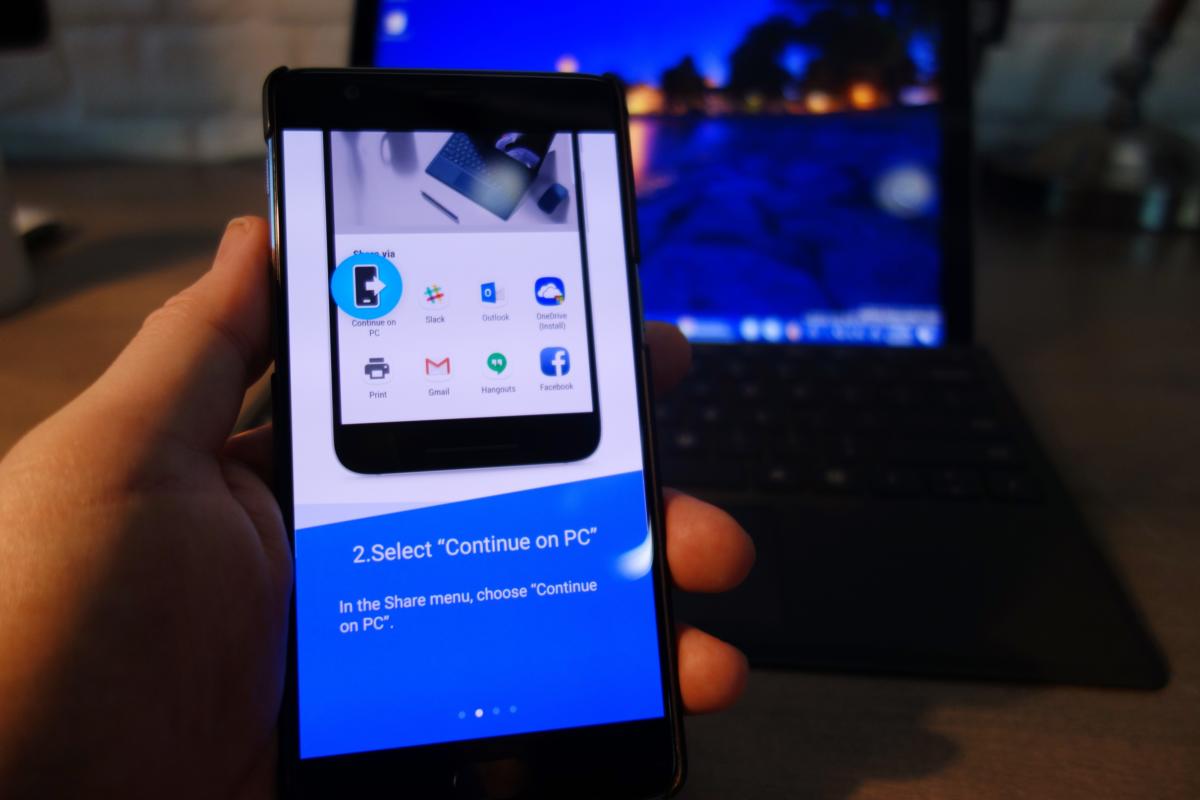
Now, when you surf to a webpage—even on Android’s Chrome browser—you’ll have the option to “share” it to your PC, just as you might share it to Twitter or Facebook. You’ll have the options to share it now or share it later. Sharing it now immediately opens a webpage using Windows’ Edge browser. Sharing it later should place the link inside the Action Center’s notifications for later viewing, though a bug seemed to prevent that from working on my machine. (It appears that Build 16273 may fix this, based on the update notes.)

Right now, the sharing options are not available on the mobile Office apps, though you can always auto-save documents to OneDrive for later editing on the PC.

Note that Microsoft already provides a PC-centric “pick up where you left off” capability within Cortana, where users who work on more than one PC can theoretically resume their work on another PC. However, it’s of limited use. Click the Cortana search box, and then the “I’ve got more for you...” box just above. Cortana will then show you the apps you were previously working on. That’s of limited use: You’re really going to forget that you were working in Outlook?)

3. Bypass your Windows password and use your phone instead

By now, you’ve probably heard of two-factor authentication, where your phone is used as an additional authentication beyond your password. Use it! But you may not know that you can avoid using your Windows password and use your phone as the primary login method to certain Microsoft apps and services—theoretically, at least.

Remember, two-factor security is based on any two of these three factors: what you know, what you have, and what you are. Normally, two-factor authentication works by asking you for your password (what you know), then texting a code to your phone, or using an app (what you have). Microsoft’s Authenticator app for Android and iPhone is the approved way to receive that code. The combination of the password you know and the code Microsoft sends to your device secures the transaction.


Popular Articles